 HefferApps
 ← Game Shelf: Rate Video Games
You’ve just rolled the credits on something brilliant and you want to tell people. A screenshot of a star rating, status bar and all, doesn’t do it justice, and a long caption gets scrolled past.
That’s why every rating and review in Game Shelf, the video game tracker I make for iPhone and iPad, can become a share card: a clean image, sized for Instagram Stories, that you can post anywhere. Here’s how to make one, which card suits which moment, and a few ideas for posts people actually stop on.
What you can share
There’s a card for each kind of moment, from a quick verdict to your whole year in games.
| Card | Best for | Where to find it |
|---|---|---|
| Rating card | A quick verdict when you finish a game | Game page › Share › Create Social Image › Share Rating |
| Review card | Your take, in your own words | Game page › Share › Create Social Image › Share Review |
| Custom poster | Big releases and favourites | Game page › Share › Create Social Image › Custom Poster |
| Collection card | Top 12s, a month or a year of games, your backlog | A collection’s menu › Share Collection |
| Player card | Introducing yourself as a player | Your profile’s ••• menu › Share Profile Card |
| Year in Review card | Your year, wrapped | The last slide of Year in Review |
How to share a game rating
- Rate the game. Open its page and give it one to five stars.
- Tap the share button in the top corner of the game page.
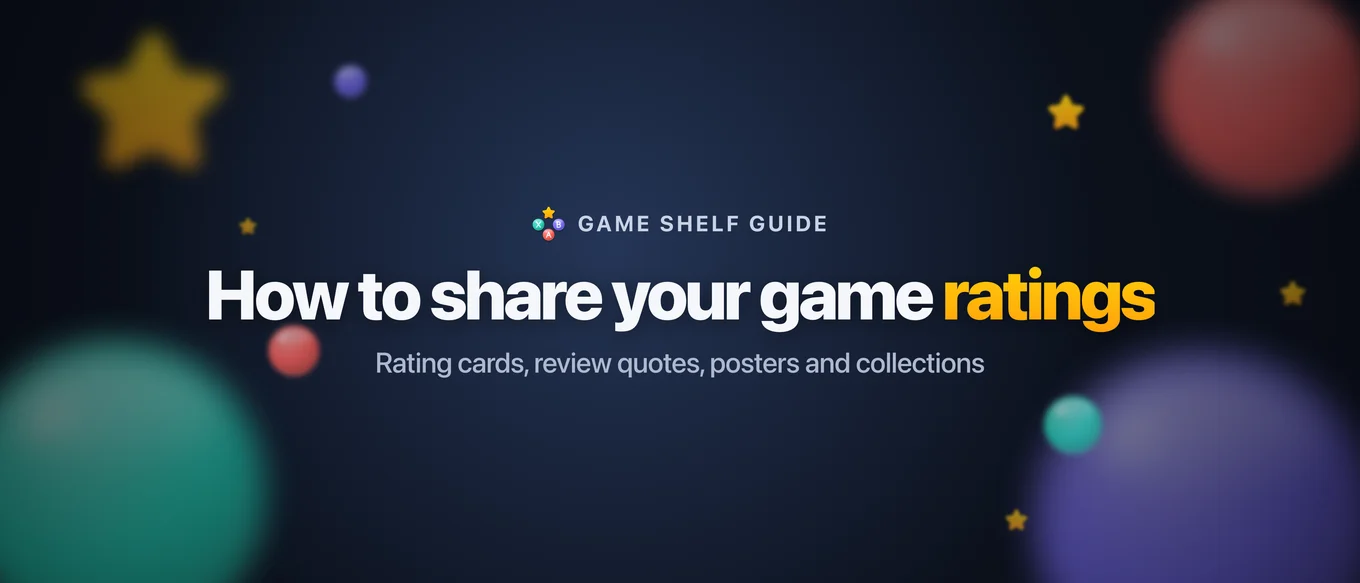
- Choose Create Social Image, then Share Rating.
- Tidy it up if you like. The ••• menu hides the title, lets you rewrite it (“Game of the year?”) or hides your stars.
- Tap Share to Instagram Stories, Save it to Photos, or Share it to any other app.
The card is the game’s cover, its title and your stars, with a small “Shared via Game Shelf” at the foot. It’s simple on purpose: it reads at a glance, which is about as long as anyone looks at a story.
Turn a review into a quote card
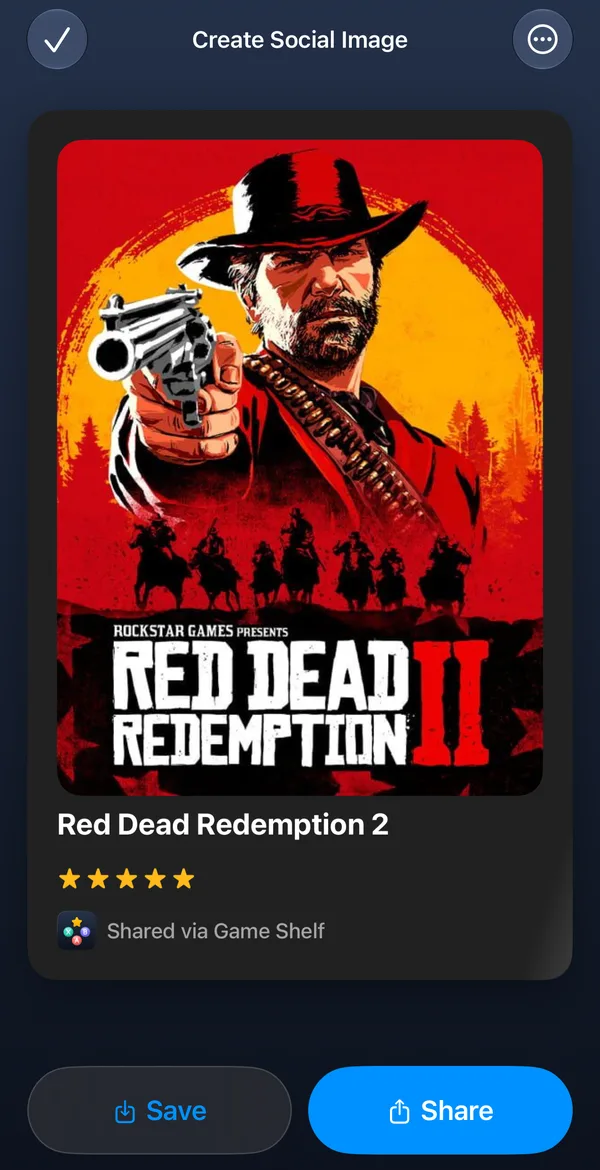
Stars say how much you liked a game. A review says why, and that’s the part people reply to. The review card puts the cover on a background taken from the cover’s own colours, with your stars under it and the start of your review as a quote. At the foot, Game Shelf’s icon and an App Store badge tell anyone who likes the look of it where it came from.
About three lines of your review fit on the card, so start with the sentence you’d want quoted. “The best open world I’ve played, and the ending earns every hour” makes a far better card than “So I picked this up in the summer sale…”.
You’ll find it under Share Review in the game page’s Create Social Image menu, and as Share Review as Image on the review itself.
Make a custom poster for the big ones
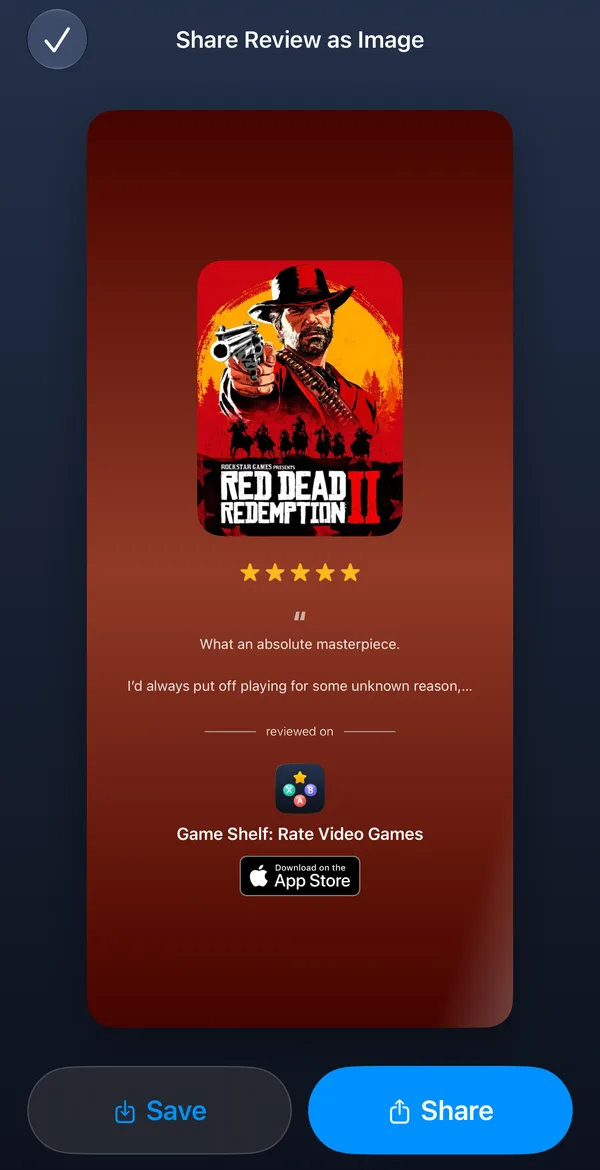
For a game that deserves more than a card, Custom Poster builds a poster from the game’s own screenshots. Detailed adds the description, the cover, the platform’s logo and the release year; Simple is the art, the title and your stars. Both come in landscape or portrait, you choose which screenshot (or the cover) leads and the card’s colour, and Show Your Rating adds your stars.
Share a whole collection
Lists travel well on social media: your top 12 of all time, everything you finished this year, the backlog you’re pretending to be on top of. Open any collection on your profile, tap its menu and choose Share Collection. You get a grid of 12, 8 or 4 covers with your stars under each, and Choose Games picks exactly which ones make the cut.
The Classic design is free. Game Shelf Pro adds three more: Poster, Minimal and Neon.
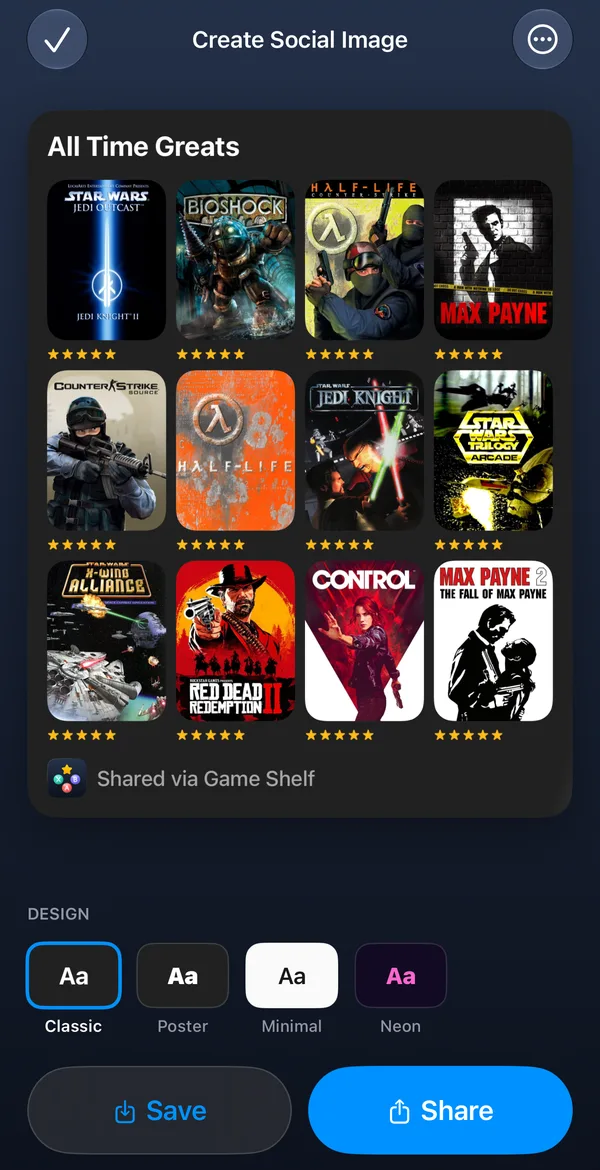
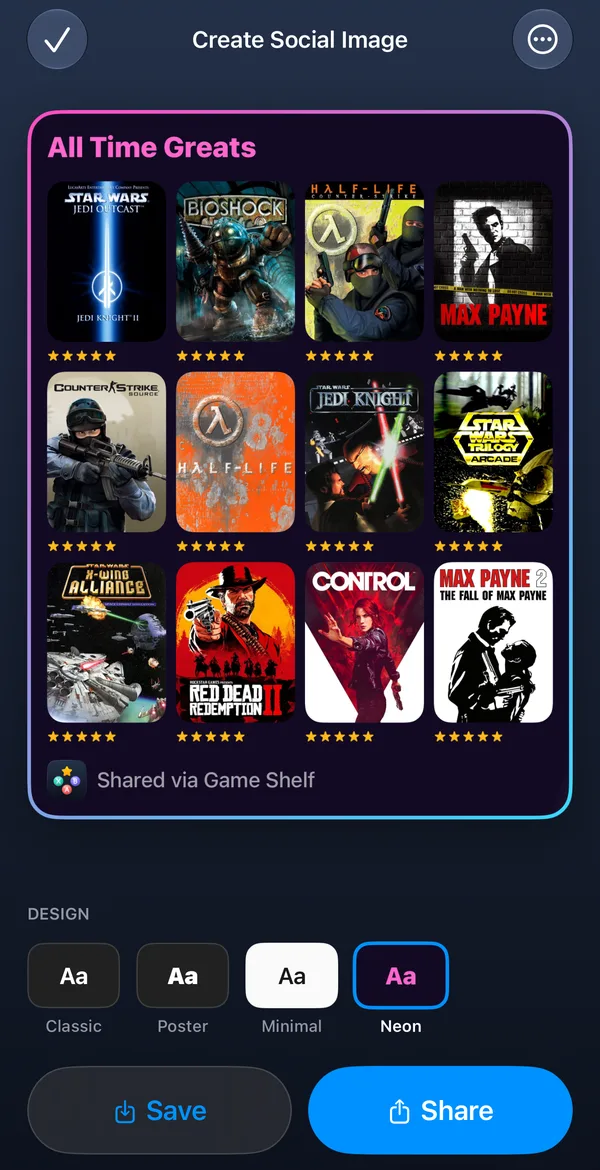
My All Time Greats as a collection card, in Classic (free) and Neon (Pro).
Your player card, and your year in games
Share Profile Card, in the ••• menu on your profile, makes a collectible card of you as a player, in your platform’s colours: your header photo and avatar, your gamer type, your numbers and three covers from your shelf. Switch it to Stats for the back of the card, with your totals and how your ratings spread across the stars.
And when the year’s done, Year in Review plays back your year game by game, like Spotify Wrapped for gaming, and ends on a summary card to share.
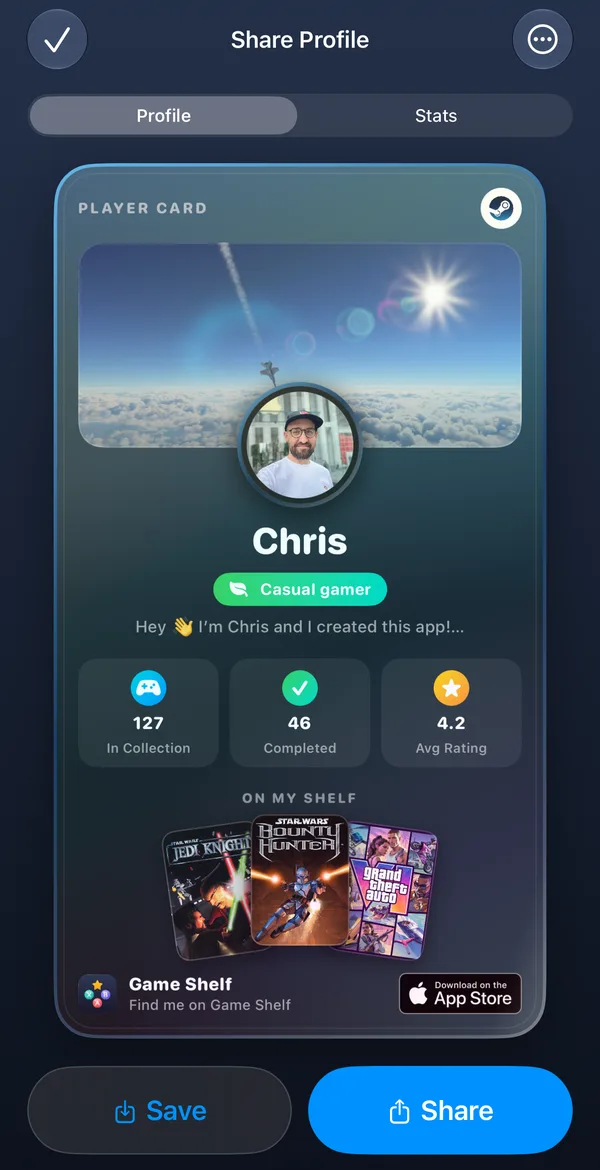
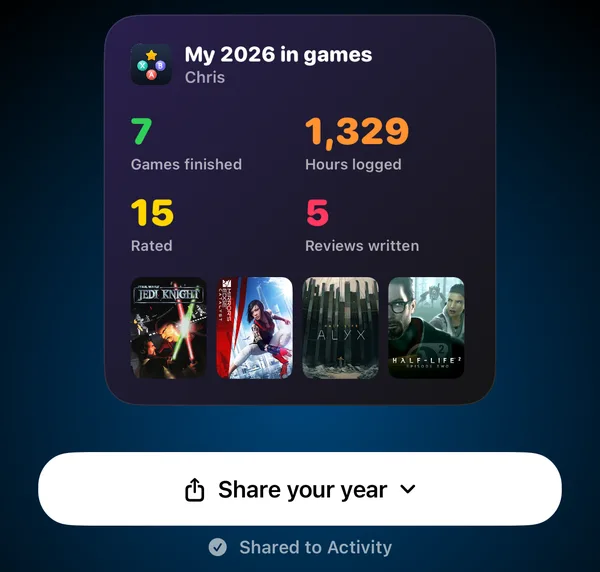
My player card, and my 2026 in games.
Where to post your cards
- Instagram Stories. Share to Instagram Stories opens Instagram with your card already on a new story, ready for text, stickers or a poll. The button shows when Instagram is on your phone.
- TikTok, X, Threads, Bluesky and Reddit. Save the card to Photos and add it to a post, or tap Share and pick the app.
- Messages, WhatsApp and Discord. Share sends the card straight to the chat. Most cards take a link to Game Shelf on the App Store with them, for friends who like the look of it.
Ideas for posts people stop on
- The finish line. Post the rating card the day you roll the credits, with one line on how it ended for you.
- The hot take. A two-star card for a game everyone loves gets replies. Be ready to defend it.
- Your top 12. All-time favourites in a 12-cover grid, stars and all. Expect arguments.
- The monthly wrap-up. A collection of what you played this month, from best to worst.
- The backlog vote. Share your backlog as a collection card and add a poll sticker: which one should you play next? (If it needs a tidy first, here’s how to organise your game backlog.)
- Before and after. The poster when you start a big game, and the review card when you finish it.
Your followers in Game Shelf see it anyway
You don’t have to post anything for friends in Game Shelf to see what you think. When you start, finish, rate or review a game, it appears in your followers’ Activity feed, where they can like it and comment. Share cards are for everyone else.
Common questions
How do I share a game rating on Instagram Stories?
Rate the game in Game Shelf, tap the share button on its page, choose Create Social Image and then Share Rating. Tap Share to Instagram Stories and Instagram opens with the card on a new story.
Is sharing free?
Yes. Rating cards, review cards, posters, player cards and Classic collection cards are all free. Game Shelf Pro adds the Poster, Minimal and Neon collection designs, and the full Year in Review with its share card.
Can I share a game without showing my rating?
Yes. On rating and collection cards, choose Hide Ratings in the ••• menu. A poster only shows your stars when you turn on Show Your Rating.
Can I change the title on a card?
On rating and collection cards, choose Edit Title in the ••• menu. It’s handy for something like “My 2026 in games” on a collection.
Do my friends need Game Shelf to see my card?
No. A card is an ordinary image, so anyone can see it wherever you post it.
Your opinions deserve better than a screenshot
You’ve put the hours in, so the verdict should look the part. Rate the game, tap share, and your take is on your story in a few seconds, looking like it was made for it.