 HefferApps
 ← Game Shelf: Rate Video Games
A backlog is meant to be a list of games you’re going to play. Leave it alone for a year and it turns into a list of everything you ever bought in a sale, half-finished RPGs and free games you claimed and forgot. At that point it isn’t helping you choose anything. It’s just a number that makes you feel guilty.
A tidy backlog is one where every game has an obvious place, and the lists are short enough to pick from. Here’s how I keep mine that way in Game Shelf, the video game tracker I make for iPhone and iPad, though the ideas work in any app or spreadsheet.
1. Give every game a status
Before you make a single list, give every game a status. A status says where you are with a game; collections, which come next, say what a game is to you. Keeping the two apart is what stops a backlog turning into a mess of lists called “Finished”, “Finished 2” and “Abandoned??”.
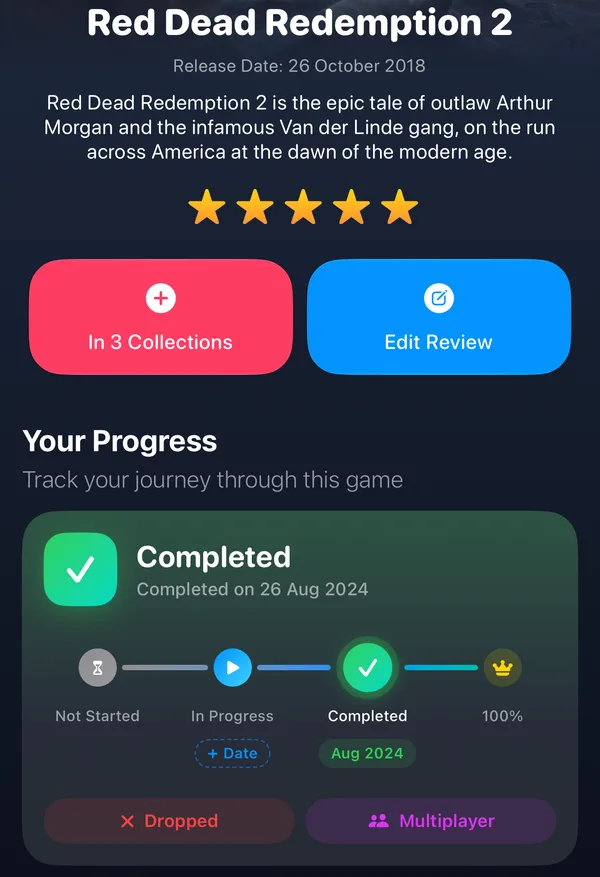
Game Shelf has six:
- Not Started: you own it, you haven’t played it. This is your real backlog.
- In Progress: you’re playing it now, or you were.
- Completed: credits rolled.
- 100%: every achievement, every collectible.
- Dropped: you’ve stopped, and that’s fine.
- Multiplayer: games like Fortnite or Rocket League that you play with no end to reach, so they never sit in your backlog looking unfinished.
Any game you put in a collection starts as Not Started. You change it in Your Progress on the game’s page, where you can add the dates you started and finished too, or straight from the game’s card in All Games (more on that below).
2. Use the three shelves you already have
Every profile starts with three: Currently Playing, Backlog and Wishlist. Give each one a clear job and most of the tidying takes care of itself.
- Currently Playing is what you’ve actually played this week. Keep it to two or three games. If there are eight, you aren’t playing eight games.
- Backlog is games you own and mean to play.
- Wishlist is games you don’t own yet. Keeping them out of your backlog stops it looking bigger than it is.
Prefer other names? Each has Rename Collection in its menu.
3. Make collections for decisions, not for the sake of it
The best collections help you decide something: what to play next, what to play on the train, what to recommend. Here are some that earn their place:
- Up Next: the next few games you’ll actually play.
- Maybe One Day: games you’re not ready to give up on, kept out of the way of the ones you are.
- All Time Greats: your favourites, for recommending and for sharing.
- Future Releases: games you’re waiting for.
- Handheld or Steam Deck: what plays well away from the TV.
- Co-op Nights: games for when friends come over.
Mine include Up Next, Maybe One Day, All Time Greats, Replay Value and Future Releases. To make one, tap + on your profile, or New Collection… in the collections menu on any game. You name it, then pick its first games, all in one go. If you’re stuck for a name, it has a few ideas, from Couch co-op to Comfort replays. Free accounts can make two collections of their own, alongside the three shelves; Game Shelf Pro has no limit.
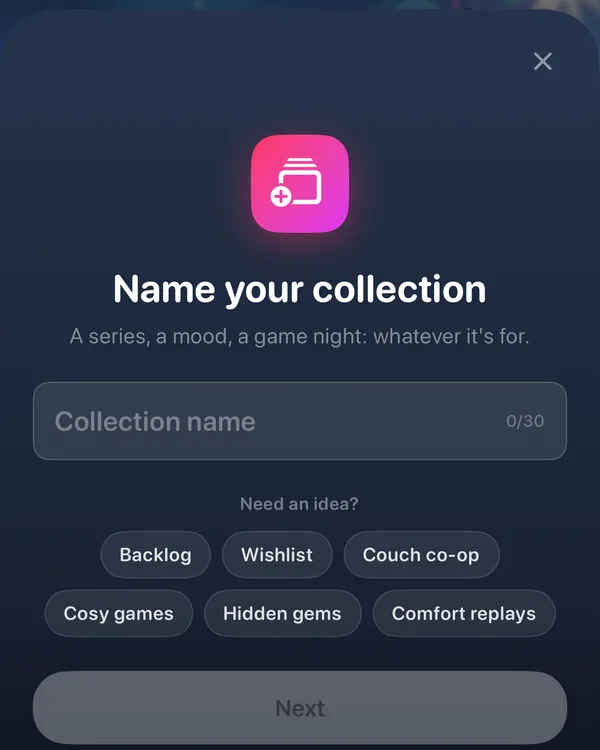
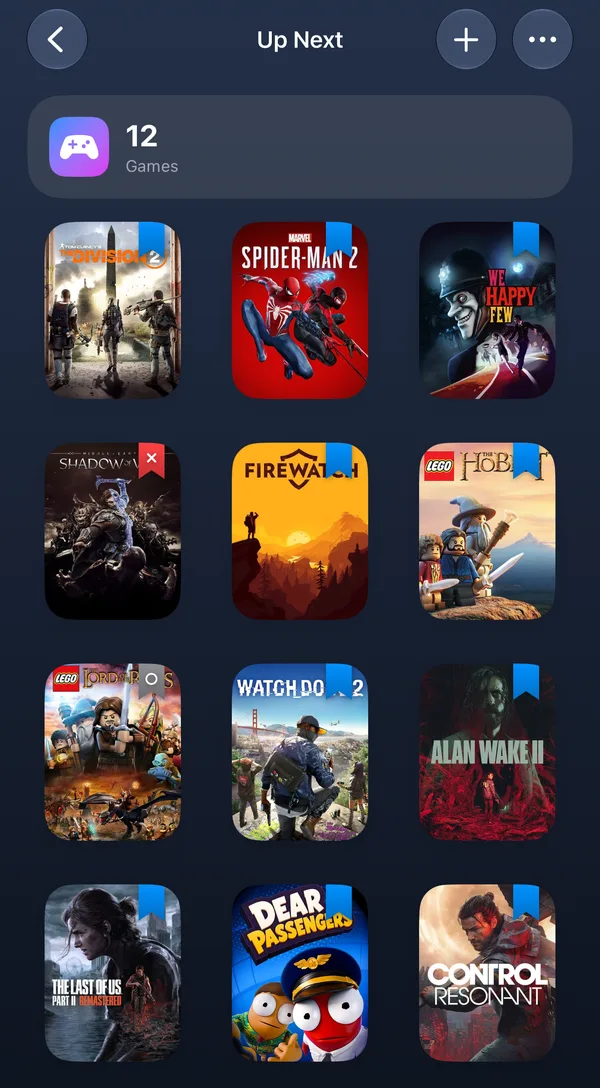
Naming a new collection, and my Up Next, which at 12 games is a little longer than I’d recommend.
4. Keep Up Next short, and in order
Up Next works when it’s a queue, not a second backlog. Keep it to five or ten games, and use Change Game Order in its menu so the one at the top is the one you’ll start next. When you finish a game, the next is already decided, and you’re far less likely to buy something new instead.
5. Do a ten-minute tidy-up in All Games
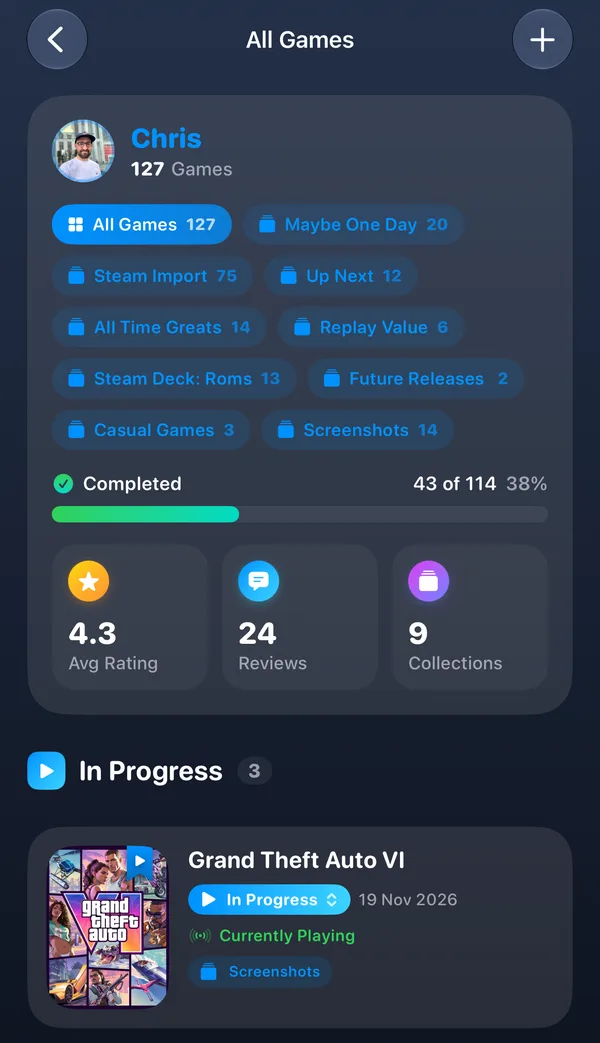
Once a month, tap the Games count on your profile. All Games shows every game in every collection, grouped by status, with a filter for each collection and a meter showing how many you’ve completed. Mine says 43 of 114. Work through it like this:
- No Status first. Anything here needs a status, and you can set it from the game’s card without opening it. After a Steam import, games you’d already played come in without one, because Steam knows you started them, not whether you finished.
- Then In Progress. Anything you haven’t touched in months is either Dropped or back to Not Started.
- Then filter by collection. Tap a collection’s chip and check its games still belong there.
6. Drop games without guilt
The fastest way to shrink a backlog is to admit which games you’re never going to play. Marking one Dropped isn’t failing: it’s an honest record that you tried it and moved on, and it takes the game out of the pile you choose from. If you can’t quite let go, put it in Maybe One Day instead. Either way, it stops getting in the way of the games you do want to play.
7. When you can’t choose, let Play Next pick
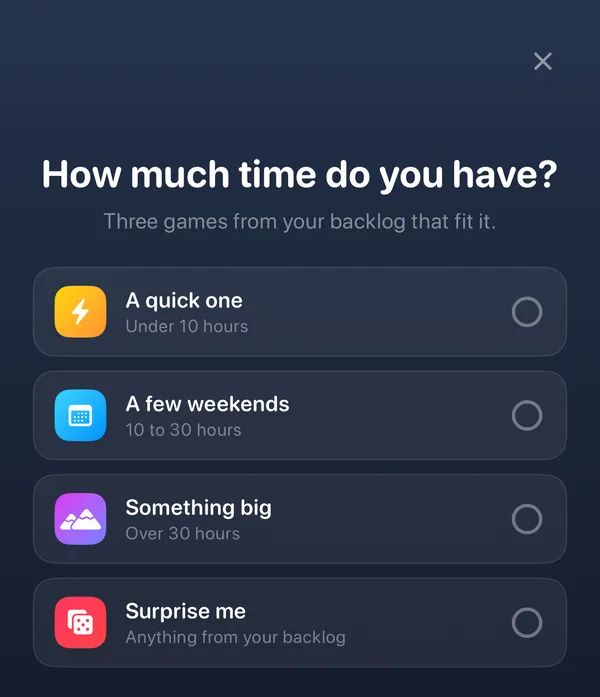
Even a tidy backlog can leave you scrolling instead of playing. Play Next, part of Game Shelf Pro, asks how much time you’ve got (a quick one, a few weekends or something big), then picks three games from your Backlog that fit, with about how long each takes to beat. It leaves out anything you’re playing, have finished, dropped or play for the multiplayer. Not feeling any of them? Shuffle for three more.
8. Decide who sees what
Your collections are on your profile for friends to browse, which is half the fun. A few settings in each collection’s menu help:
- Change Collection Order puts the collections you care about at the top of your profile.
- Hide from My Profile (Pro) keeps a collection to yourself, such as a list of gifts to buy.
- Publish to Community puts a collection where other players can find it and like it.
- Share Collection turns it into an image of up to 12 covers for Instagram or anywhere else. There’s more on that in how to share your game ratings on social media.
A 15-minute backlog tidy-up
- Open All Games and give everything under No Status a status.
- Mark games you’ll never go back to as Dropped, or move them to Maybe One Day.
- Trim Currently Playing to what you played this week.
- Pick five games for Up Next and put them in order.
- Move anything you don’t own yet to your Wishlist.
- Delete a collection you never open. Your ratings and reviews stay put.
Common questions
What’s the best way to organise a game backlog?
Keep every game in one place, whatever it’s on, and give each one a status. Your backlog is then simply your Not Started games. Add a few collections that help you decide, such as Up Next and Maybe One Day, and tidy up once a month.
What’s the difference between a status and a collection?
A game has one status, which says where you are with it: Not Started, In Progress, Completed, 100%, Dropped or Multiplayer. It can be in as many collections as you like, which say what it means to you.
How many collections can I make for free?
Two of your own, as well as Currently Playing, Backlog and Wishlist. Game Shelf Pro lets you make as many as you like, and keep some private.
What should I do with games I’ll never finish?
Mark them Dropped. If it’s a game you play with friends rather than one with an ending, mark it Multiplayer, so it doesn’t count as unfinished.
Can I export my backlog?
Yes, with Game Shelf Pro. Export Your Library saves every game on your shelf as a spreadsheet.
A backlog you can actually use
A backlog doesn’t need to be small to be useful. It needs to be honest: what you’re playing, what’s next, what you’re waiting for and what you’ve let go. Ten minutes a month keeps it that way, and the next time you’ve got an evening free, you’ll spend it playing instead of scrolling.