 HefferApps
 ← Book Club

Goodreads will give you your whole library as one file: every book you’ve shelved, your star ratings, the dates you finished them and your reviews. It’s worth having as a backup, and it’s how you move your books to another app without starting again.
I make Book Club, a reading tracker for iPhone that can import that file. This guide covers how to export your Goodreads library, on a computer or on your phone, what’s in the file, and how to bring it into Book Club. If you use StoryGraph, that’s here too.
How to export your Goodreads library
The export is on the Goodreads website. On a computer:
- Sign in at goodreads.com and open My Books.
- Find Import and export. It’s under Tools, near the bottom of the column on the left.
- Choose Export Library. Goodreads prepares a fresh copy of your library, which can take a few minutes if it’s a big one.
- Download the file when its link appears. It’s a CSV file, a spreadsheet saved as plain text.
Exporting only makes a copy. Nothing changes on your Goodreads account.
Exporting from Goodreads on iPhone
The Goodreads app doesn’t have an export, but the website does, and it works in Safari on your phone:
- Open goodreads.com/review/import in Safari and sign in. That’s the Import and export page.
- If you get the mobile site and can’t see the export, use Safari’s Request Desktop Website option.
- Choose Export Library, wait for the link, then tap it. Safari saves the file to Downloads in the Files app.
That’s all Book Club needs: it opens the file straight from Files.
What’s in a Goodreads export
Open the file in Numbers or Excel and you’ll find a row for every book and a column for each detail. These are the ones that matter most:
| Column | What it holds |
|---|---|
| Title, Author | The book and its main author |
| ISBN, ISBN13 | The edition’s ISBN, where Goodreads has one |
| My Rating | Your stars, 1 to 5, or 0 if you didn’t rate it |
| Exclusive Shelf | read, currently-reading, to-read, or a shelf of your own, such as dnf |
| Bookshelves | Every shelf the book is on, including the ones you use as tags |
| Date Read | The day you last finished it |
| Read Count | How many times you’ve read it |
| Date Added | When you shelved it |
| My Review | Your review, with its formatting |
| Binding | Hardcover, paperback, Kindle edition, audiobook and so on |
| Private Notes | The notes only you could see |
A few things catch people out:
- The ISBNs look odd. They’re written like
="0618640150", so a spreadsheet keeps the noughts at the front. Most Kindle editions don’t have one at all. - There’s only one read date. If you’ve read a book three times, Read Count says 3, but Date Read has only the last of them.
- Some dates are blank. If you never set the date you finished a book, there’s nothing to export.
- Keep the original. Opening the file in a spreadsheet and saving it again can change ISBNs and dates. Look by all means, but keep the file you downloaded as it is, and import that one.
How to export your StoryGraph library
- On thestorygraph.com, open your profile menu and choose Manage Account.
- Under Manage Your Data, choose Export StoryGraph Library.
- Generate the export, then download the file when it’s ready.
StoryGraph’s file is a CSV too. Unlike Goodreads’, it keeps the dates of every read, not just the last, and its star ratings can be in quarters.
How to import it into Book Club
Book Club imports a Goodreads or StoryGraph export, and it’s free.
- Get the file into Files on your iPhone, if it isn’t there already. AirDrop or iCloud Drive will bring it over from a computer.
- In Book Club, open Settings and choose Import from Goodreads or StoryGraph. It’s offered when you first open the app, too, as you add your first books.
- Choose CSV File and pick your export. Book Club looks for each book by its ISBN, or by its title and author together.
- Check the preview. It shows how many of your books were found, how many are read, reading and to read, and anything that couldn’t be found. Nothing is saved yet.
- Decide about your reviews. They stay behind unless you turn them on, because reviews on Book Club are public: they show in Activity, in Discover and on the book’s page.
- Tap Import, and keep the app open until it’s done.
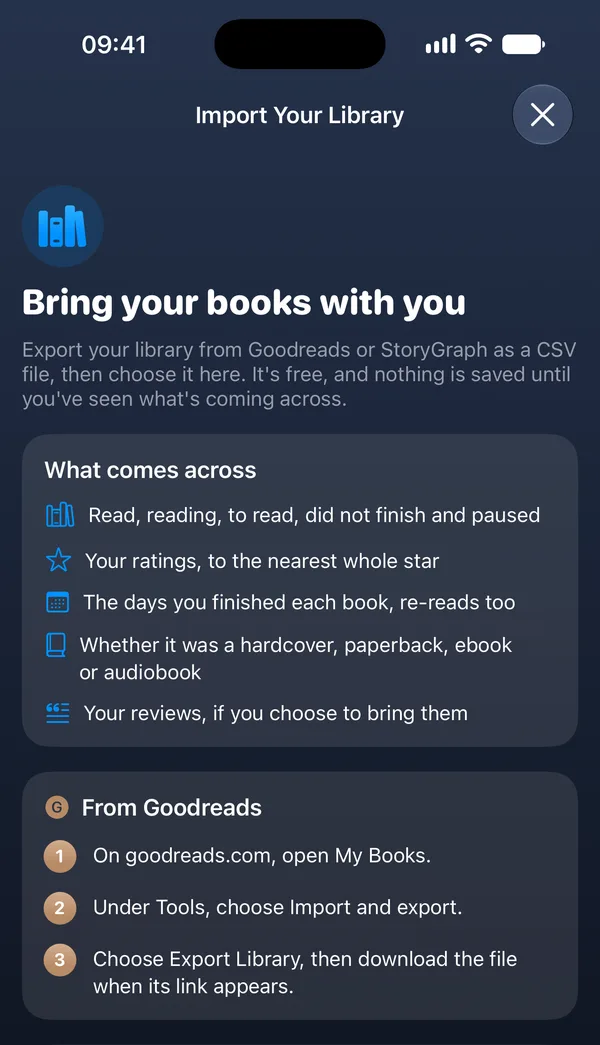
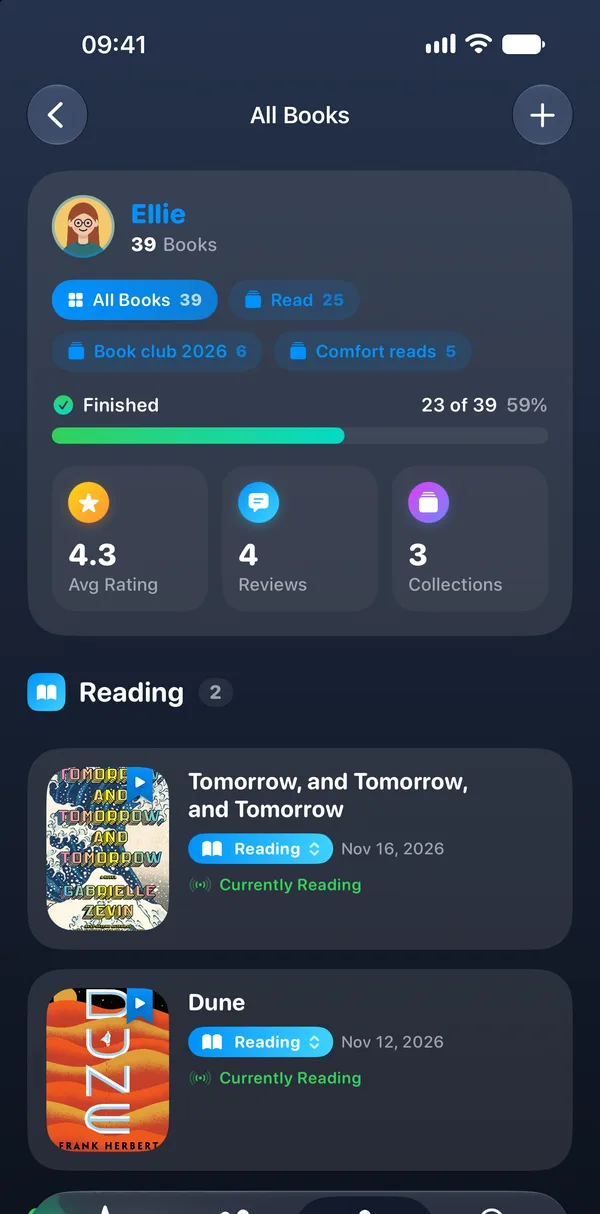
The import screen, and your library once it’s in.
What comes across
Here’s where everything in your export ends up:
| In your export | In Book Club |
|---|---|
| read | Finished, in a collection called Read |
| currently-reading | Reading, in Currently Reading |
| to-read | In your To Read collection |
| did-not-finish on StoryGraph, or a Goodreads shelf such as dnf or abandoned | Did Not Finish |
| paused on StoryGraph, or a Goodreads shelf such as on-hold | Paused |
| Star ratings | Your ratings, to the nearest whole star |
| Dates read | The days you finished each book, re-reads too where they’re dated |
| Binding or format | Hardcover, paperback, ebook or audiobook |
| Reviews | Yours, if you choose to bring them. Goodreads reviews marked as spoilers stay marked. |
A few things stay behind: the extra Goodreads shelves you use as tags, such as favourites or 2024, your private notes, and any book Book Club can’t find. The preview lists the books it couldn’t find, so you can search for them and add them by hand.
Things worth knowing
- Your dates stay where they belong. A book you finished in 2019 counts towards 2019, not this year. Its rating is dated to when you finished it, too, so your reading goal and Year in Review still add up.
- Books with no finish date come across as Finished, but don’t count towards any year’s total, because there’s no year to count them in.
- Books already in Book Club are merged. What you’ve set there stays: the status, the rating and the review. Any finish dates it didn’t have are added. So you can import again later without doubling anything.
- Your followers aren’t flooded. An import isn’t announced in Activity. Old finishes and ratings keep their own dates, so they don’t land at the top of anyone’s feed.
- Very big libraries. Most fit with plenty of room to spare. If yours runs to many thousands of books with long reviews, Book Club tells you before anything is saved: it may leave the reviews behind, or ask you to take some to-read books out of the file.
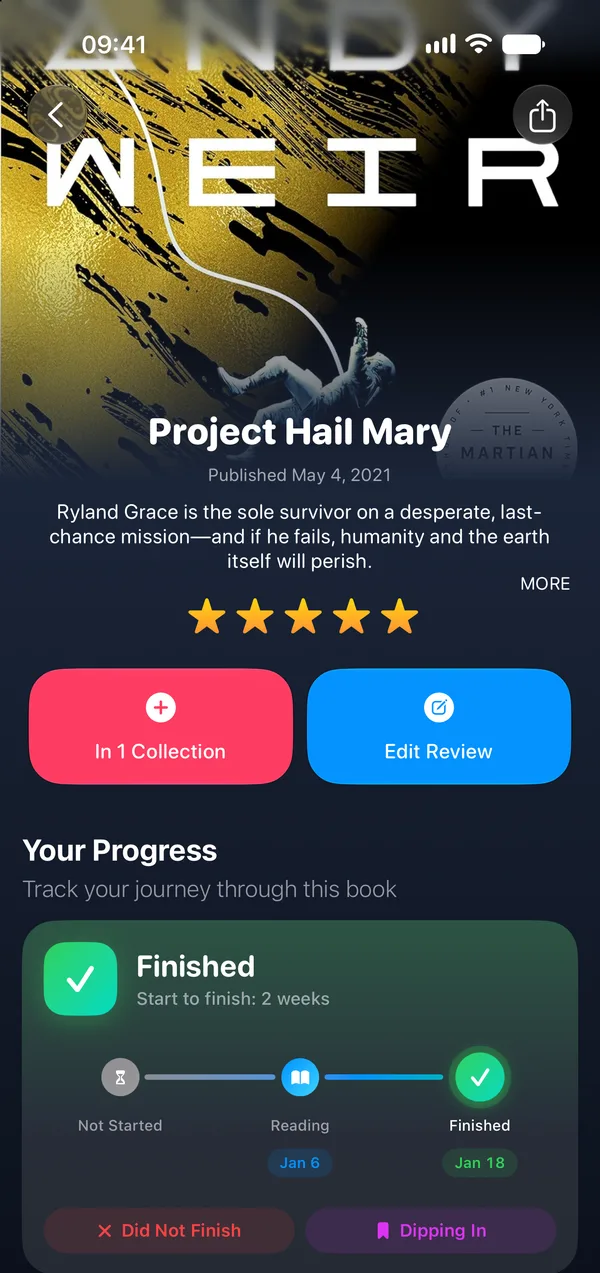
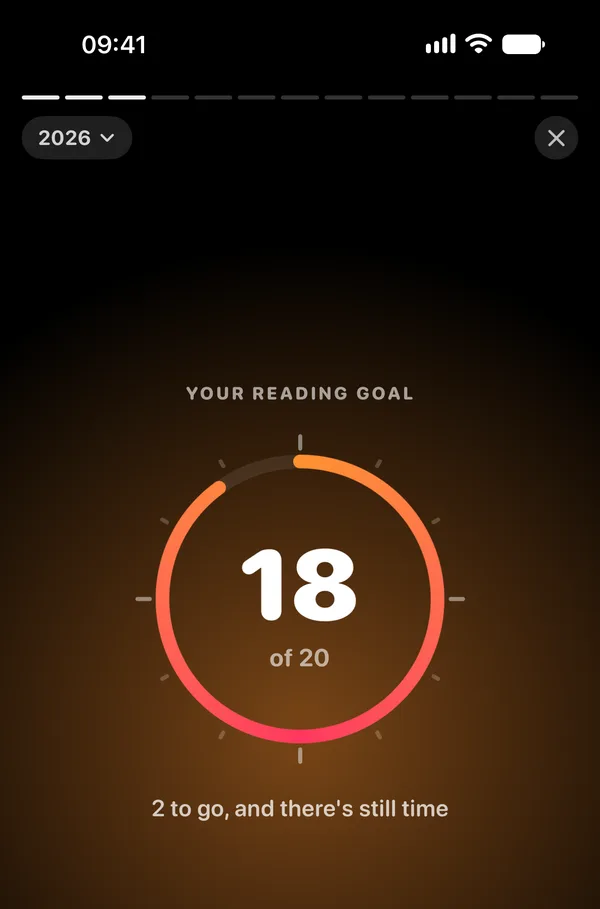
A finished book’s dates, and your reading goal for the year.
Book Club is free, and so is importing your library. Rating, reviewing, following friends and your reading goal are free too. Pro adds reading stats, Read Next suggestions from your To Read pile and your full Year in Review.
Common questions
Can I export my Goodreads library from the app?
No. The export is only on the Goodreads website. On a phone, open goodreads.com/review/import in Safari, sign in and choose Export Library.
Why isn’t my Goodreads export working?
Give it a few minutes, then reload the page: Goodreads prepares the file before the link appears, and a big library takes longer. On a phone, switch Safari to the desktop website if you can’t see Export Library.
Does exporting delete anything from Goodreads?
No. It downloads a copy. Your books, shelves and reviews stay on Goodreads as they were.
Is Book Club connected to Goodreads?
No. Book Club isn’t connected to Goodreads or StoryGraph: it reads the file you export. Anything you change on Goodreads afterwards won’t come across unless you export and import again.
Why weren’t some of my books found?
Book Club looks for each book by its ISBN, or by its title and author together. A book with no ISBN, whose title doesn’t quite match, may not turn up. Search for it in Book Club and add it by hand.
Keep a copy, whatever you use
Even if you’re staying on Goodreads, export your library now and then and keep the file somewhere safe. Years of reading are worth the minute it takes. And if you’d like a fresh start that keeps your history, Book Club is free on the App Store.